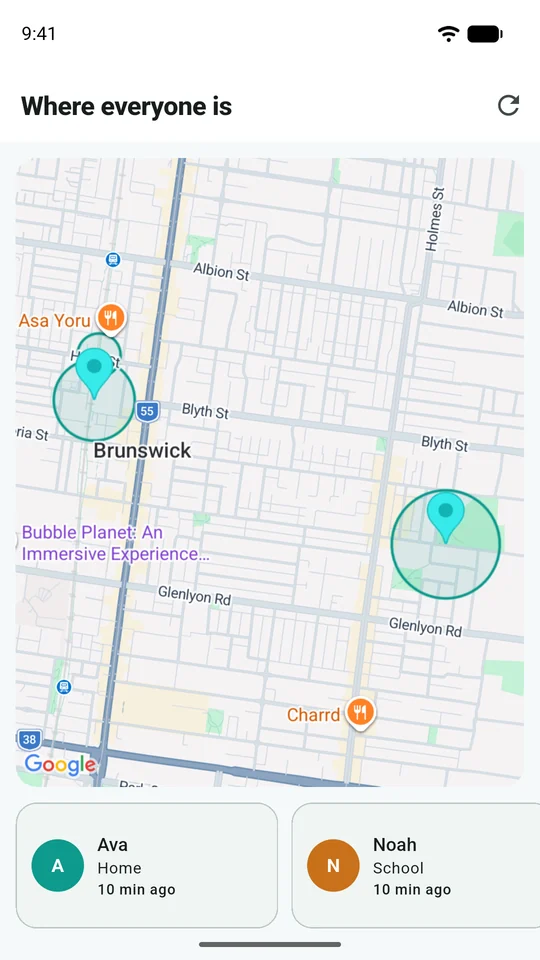
Start with two separate questions
When a family map looks wrong, ask “How old is this information?” and “How accurately was this position measured?” A recently received position can be imprecise. An accurate position from earlier can still be out of date. A pin alone does not answer both questions.
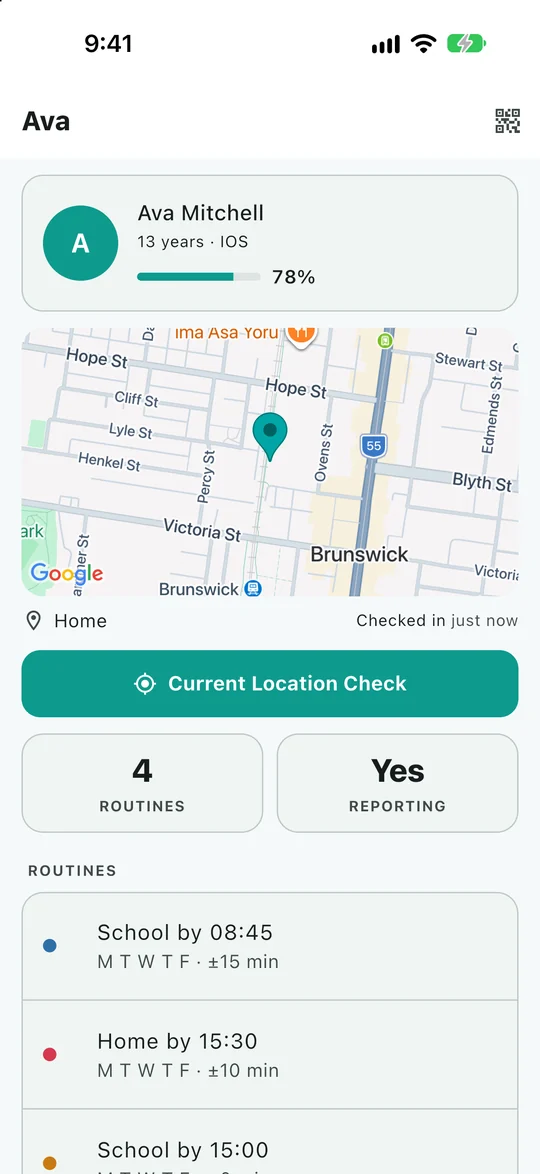
Open the child's card and read the time beside the location. If Eyrie identifies the phone as offline or shows a last-known location, treat the pin as historical information. It is not confirmation that the child is still standing there.
A phone check-in and a GPS fix are different
A phone can contact Eyrie to send device status or a message while it is still waiting for a better location. A status such as “checked in” describes contact with the service; it should not be read as a guarantee of a fresh, precise GPS measurement.
Similarly, Sharing with your family on the child's screen describes the sharing state. It does not promise that the network, operating system and location sensors can deliver an uninterrupted stream. Use the timestamp, location context and ordinary communication together.
Why a stationary phone can appear to move
Phones combine available location signals. Buildings, underground travel and restricted sky views can affect the result. Indoors, a map may put a phone near the street rather than in the correct part of a building. Approximate-location permission also gives an app less precise information.
A short jump on the map is therefore not enough to conclude that someone left school or visited a neighbouring house. Look at the sequence of reports and ask whether the size of the jump is plausible. Apple's Location Services explanation and Google's location-settings guide describe the sources phones use.
A practical example
Suppose the last report is from 8:40 am and places the phone near school. At 9:10 am, the map still shows that pin. The useful conclusion is “the last reported location was near school at 8:40,” rather than “the phone is definitely there now.”
Now suppose three fresh reports shift between the school gate and a nearby street while the child is in a classroom. First check accuracy and the saved-place boundary. Tight boundaries can turn normal measurement variation into apparently meaningful arrivals and departures.
Work through these checks in order
- Read the time. Take note of the last report before pressing anything.
- Use ordinary contact if needed. Send a message or call when it is appropriate. An urgent safety concern needs direct action, not repeated map refreshes.
- Check the child's phone when available. Open Eyrie, confirm the intended family and review the sharing state.
- Check connectivity and permissions. A phone needs a way to upload its report, plus the location access your family has chosen. Use the Android or iPhone instructions.
- Request one current-location check. Allow time for the phone to respond. A request cannot guarantee that an offline, restricted or powered-off phone will wake.
- Review places if the problem is an arrival alert. Position the boundary around the actual site and allow for measurement variation. See places and routines.
When to ask for help
If reports repeatedly stop under the same conditions, note the phone model, operating-system version, Eyrie version, whether it was charging and when the screen was locked. A pattern such as “updates stop shortly after unplugging” is more useful than a single unexplained pin.
Send those details and the exact error to support. Avoid sharing identifiable map screenshots publicly. Eyrie is a coordination and safety aid; a stale pin, missing report or delivered message cannot establish whether somebody is safe.