Choose who needs to hear the message
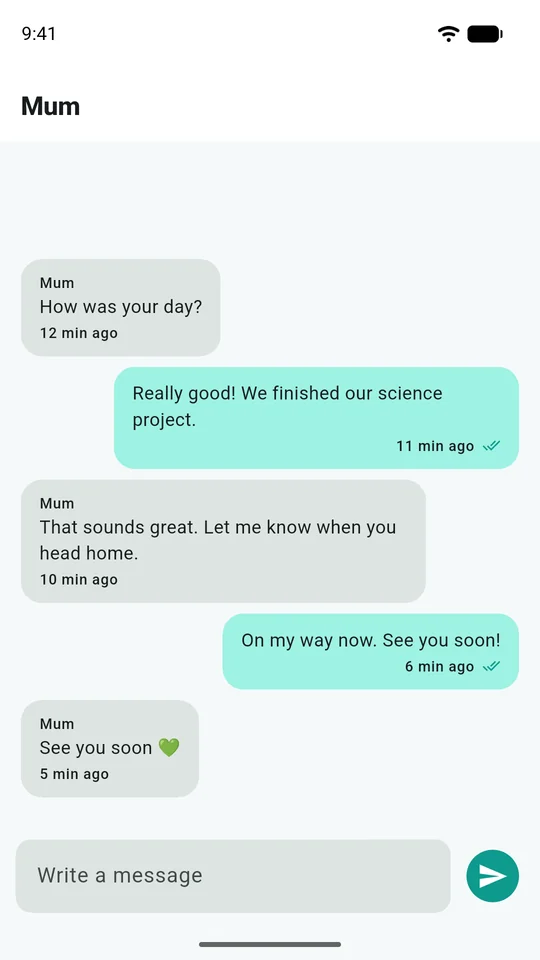
Eyrie's short text conversations help a family coordinate everyday things: “I'm at training,” “Can you collect me?” or “The bus is late.” They are conversations inside Eyrie, rather than access to the child's messages in other apps.
Before sending, check the conversation title. A family conversation and a conversation with one guardian can have different audiences. If the message contains something private, choose the intended person deliberately instead of assuming every thread is one-to-one.
From the child's phone
On the child's home screen, choose Message. The first screen offers short replies. Choose Write something else to open the list of conversations, then select the family or the named guardian and write your message.
If the list is empty or the person you expect is missing, ask the family organiser to review the invitation and the access granted. Repeatedly reinstalling the app will not create a missing family relationship. Make sure the phone is paired to the intended child before troubleshooting notifications.
From a grown-up or guardian phone
Open the child's card and Messages, or use the relevant conversation in your message inbox. Confirm the child's name before sending, particularly if you look after children from more than one family.
Invited guardians have their own sign-in route. Choose Guardian sign-in, enter the invited email address and use the code sent to that address. This is different from the organiser's password sign-in and from a child's pairing code. If an invitation was sent to a different email address, ask the organiser to correct it rather than sharing someone else's credentials.
Read the ticks carefully
| Indicator on your outgoing message | What it tells you |
|---|---|
| One tick | The service accepted the message for sending |
| Two grey ticks | Delivery to a recipient device has been recorded |
| Two coloured ticks | A recipient opening the conversation has been recorded |
These are technical receipts. They do not prove that a particular person has understood the message, can reply or is safe. In a family conversation, a receipt should not be treated as confirmation that every adult has read it.
If a message needs an immediate response, use an appropriate direct contact method. A quiet phone can be offline, asleep, muted or simply out of reach. Avoid using an unread message as evidence that somebody is deliberately ignoring you.
A missing banner and a missing message are different problems
If the message is visible when you open the conversation, review notification permission, sounds, Focus or Do Not Disturb, and lock-screen settings on the receiving phone. An app can receive content without showing the banner you expected. When you are already reading the relevant conversation, a separate notification may be unnecessary.
If the message is absent from the conversation, first check the selected family, child and thread. Confirm that both devices are online, reopen the app and allow it to reconnect. The current app refreshes active conversations as new messages arrive and refreshes them when you return. Pull-to-refresh is available as a manual retry, rather than the intended way to see every message.
Opening a conversation marks the messages read and clears their matching notifications on that device. A newer unread message should remain. An SMS or email already received outside Eyrie is separate from the app's notification tray.
Keep invitations and screenshots private
Grant each guardian only the access the family needs, and review it when circumstances change. A trusted-circle contact is not automatically a guardian with a message inbox. The SOS guide explains that distinction.
For a persistent problem, contact support with the app version, phone models, time sent, receipt shown and whether the message is missing or only its banner. Do not send passwords, sign-in codes or private conversation text unless a specific, necessary support step has been agreed.