What SOS is for
Eyrie's SOS lets a child tell their family they need help. It sends an alert through Eyrie and includes the location information available to the service. It does not call emergency services or arrange an emergency response. If there is immediate danger, use the emergency services where you are and any other safe way to obtain help.
Discuss SOS before it is needed. A child should know both how to ask for help in the app and what to do if their phone is flat, offline, locked away or unable to send. A family member receiving an alert still needs to assess it and act.
Guardians and trusted contacts have different roles
A Guardian is invited into Eyrie with the access the family organiser grants. That may let them see the relevant child's information and receive alerts in the app. Check each person's access instead of assuming all adults see the same thing.
A Trusted Contact is someone your family can ask to help when an alert is unanswered. They do not become a family app user simply because you add their mobile number. On plans with escalation, a trusted contact can receive an SMS and, if you supply an email address, an email. This is a contact route, not access to the live family map.
Choose people who have agreed to be contacted and know the family. Ask what they can realistically do: telephone you, contact another carer or check a familiar location. Do not assume they are watching their phone at all times.
Set up the trusted circle deliberately
Open Family → Trusted Circle → Add contact. Enter the person's name and mobile number, and optionally their relationship and email. Review the displayed delay for contacting them without a response. Confirm which escalation features your plan includes and review the family's alert settings as well.
Read mobile numbers back before saving, especially international numbers. Tell the recipient what an Eyrie message will look like and how to recognise your family. Recheck details when a number changes or someone stops being an appropriate contact. Adding more contacts is useful only when everyone understands the arrangement.
Explain the child's screen without sending an alarm
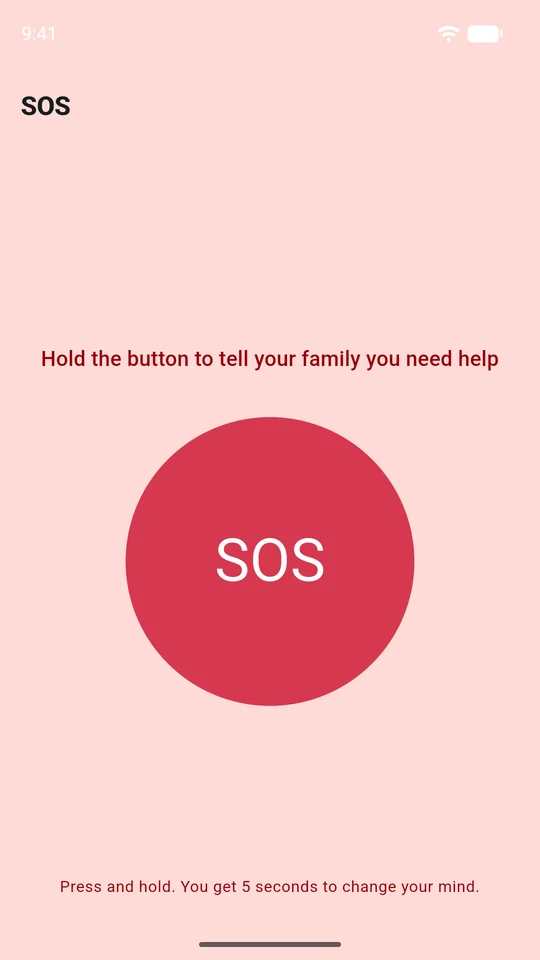
You can use the demonstration screenshot on this page for a first conversation. It contains fictional family data. Explain that the child opens SOS, then presses and holds its SOS control to start the displayed countdown. During the countdown, Cancel stops it before sending.
Holding the SOS control can send a real alert. Do not hold the button just to explore it. For an ordinary connection check, use a message or I'm here instead.
If the app says an SOS did not send, the child should not assume the family was told. They should use another safe way to get help. A success message means the service accepted the request; it cannot guarantee that a person saw the notification or is on the way.
Review the receiving phones
On each guardian's phone, allow Eyrie notifications and review sounds, lock-screen display and applicable Focus or Do Not Disturb settings. Apple and Android give the device owner control over notification presentation. See the iPhone notification guide or Android notification guide.
Avoid assuming an SOS always bypasses Silent mode, Focus or a powered-off phone. Networks, device settings and the capabilities available to a particular app release all matter. SMS and email escalation can also be delayed or unavailable.
Agree what happens after the alert
Choose who will take the lead, how adults communicate with one another and what to do if they cannot reach the child. Once the situation has been checked, resolve the alert in Eyrie so the family has an accurate record. Resolving it does not retract an SMS or email that has already been sent.
Revisit the plan after an accidental alert or a change of carers. The family agreement gives you a simple place to record those decisions.